
Is the security of your WordPress website a major concern for you in today’s web world? Your users’ website security is incomplete without SSL certificates. SSL stands for Secure Sockets Layer certificate, which adds an extra level of protection by scrambling the information sent from a web browser to a server, thus making it harder for hackers to intercept such data as credit card numbers or login credentials.
Read on for an interesting yet simple guide on how to obtain a free SSL Certificate in WordPress with Let’s Encrypt. This write-up ensures that after going through it, your site will be updated to meet the latest standards and offer secure browsing to everyone who visits it.
Understanding SSL
Before you set up an SSL certificate, it is essential to have an understanding of what SSL entails.
SSL, or Secure Sockets Layer, is a security protocol that encrypts data exchanged between two parties online. This encryption ensures that data cannot be accessed or altered during transmission without the decryption keys. Implementing SSL on your website can bring advantages, such as boosting consumer trust, improving SEO rankings, and ensuring compliance with regulations.
When a website uses SSL, it switches from HTTP to HTTPS, and a padlock icon appears in the browser’s address bar. This not only secures your site but also builds trust with visitors and improves your SEO ranking, as Google favors secure websites.
Let’s Encrypt provides a free SSL certificate, making it easier than ever for WordPress users to secure their sites without spending money.

Free vs Paid SSL Certificates: What’s the Difference?
| Feature | Free SSL (e.g., Let’s Encrypt) | Paid SSL Certificates |
| Cost | Completely free | Varies ($5 to $200+ per year) |
| Issued By | Certificate Authorities like Let’s Encrypt | Trusted commercial Certificate Authorities (CAs) |
| Validation Level | Domain Validation (DV) only | DV, Organization Validation (OV), and Extended Validation (EV) available |
| Trust Indicator | Basic padlock icon | Padlock + Business name in some cases (EV) |
| Warranty/Insurance | None | Yes (ranges from $10K to $1M, based on provider) |
| Support | Community-based support | Dedicated customer support |
| Ideal For | Blogs, personal sites, and small businesses | E-commerce, financial sites, and large organizations |
If you are running a blog or small business site, a free SSL like Let’s Encrypt is more than sufficient. But if you are handling sensitive customer data or need brand trust signals, a paid SSL offers higher validation and support.
What is Let’s Encrypt?
Let’s Encrypt is a free, automated, and open Certificate Authority (CA) that provides SSL/TLS certificates to help make the internet more secure. It is run by the Internet Security Research Group (ISRG) and backed by major tech companies like Mozilla, Google, and Cisco.
Unlike traditional SSL providers, Let’s Encrypt issues free Domain Validation (DV) certificates that can be set up automatically. This means you can secure your WordPress website with HTTPS without paying a fee or manually renewing the certificate—it typically auto-renews every 90 days.
Website owners may easily install SSL/TLS certificates and establish secure connections between their sites and visitors with the help of Let’s Encrypt. Users may easily and rapidly obtain, validate, and deploy certificates thanks to the fully automated certification process.
Let’s Encrypt’s accessibility is one of its key benefits. Let’s Encrypt does not charge a fee for its certificates, in contrast to typical CAs. Rather, it gets funding for its operations from sponsorships and donations. Smaller websites and companies can now afford to use HTTPS without going over budget as a result.
Furthermore, Let’s Encrypt encourages TLS security best practices. Because only contemporary cryptographic setups and algorithms are supported by its certificates, websites are guaranteed to be safe from known vulnerabilities. Let’s Encrypt wants to encourage more website owners to switch to HTTPS and contribute to a better and more secure internet by offering free and easily available SSL/TLS certificates.
Steps to Add a Free SSL Certificate in WordPress With Let’s Encrypt
Installing a free SSL certificate using Let’s Encrypt for your WordPress website is an excellent approach to improve security and earn the trust of the people who visit your site. Below, you will find an in-depth guide on how to go about it:
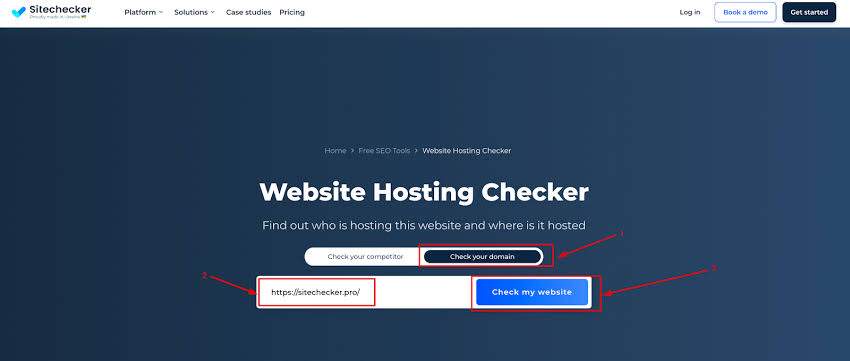
Step 1: Inspecting Your Hosting Provider
Some hosts may provide an option to install Let’s Encrypt SSL directly from their control panel. For instance, Bluehost, SiteGround, or DreamHost made it extremely easy.
Step 2: Access cPanel or Hosting Dashboard
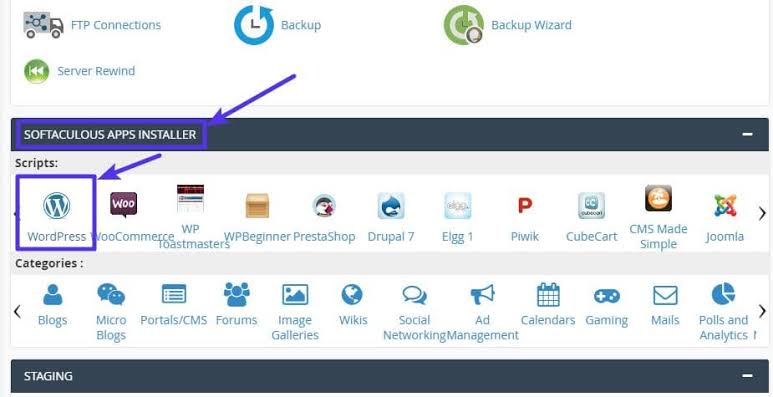
Log in to your hosting account and go to the cPanel or hosting dashboard. Look for ‘Security’ amongst other features, or specifically for a Let’s Encrypt icon.
Step 3: Install Let’s Encrypt
Under a security header, there should be some settings related to SSL or TLS certificates, one of which might say Let’s Encrypt. Choose the appropriate domain for this particular security certificate and then follow any instructions given in order to install it on your server.
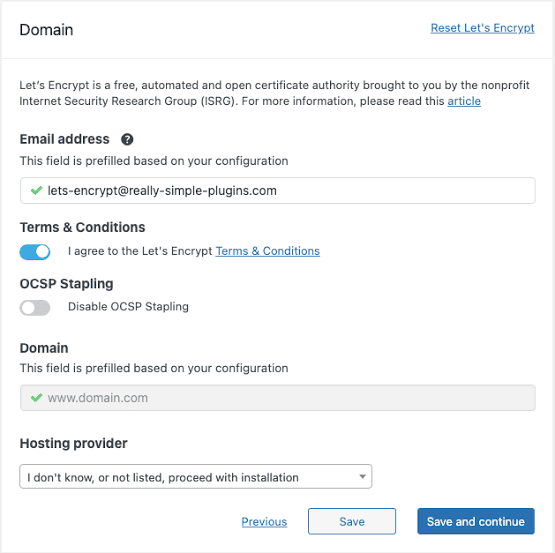
Step 4: Verify Domain Ownership
Before issuing any certificates for a domain, Let’s Encrypt has to check that you control it. This validation is generally done through an automated process by most hosting providers today.
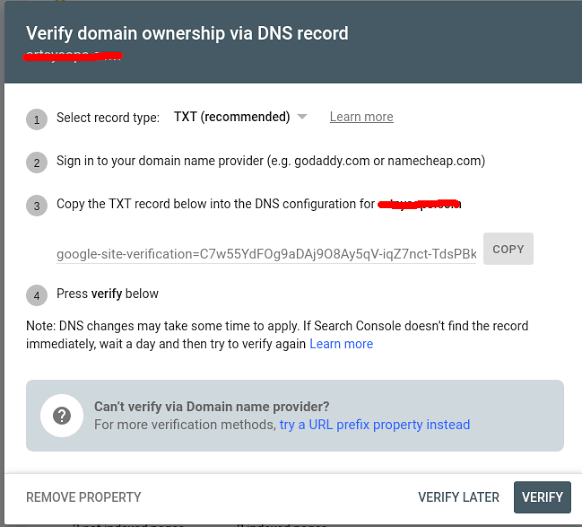
Step 5: Configure WordPress URLs
However, after installing these certificates, we must change our WordPress site addresses so they will work over HTTPS. In General Settings of WordPress, find the two fields with Site Address (URL) and WordPress Address (URL) labels next to them, where instead http:// put https://.
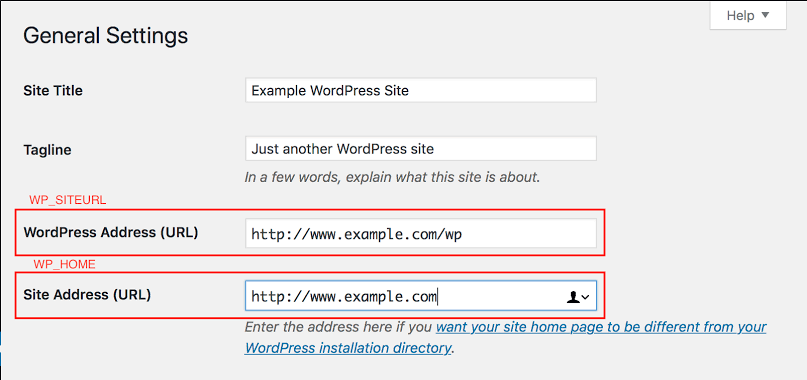
Step 6: Site-Wide 301 Redirect
In order to direct all visitors to the HTTPS version of your website, you can do this by implementing a 301 redirect in your .htaccess file or using a plugin that forces a HTTPS site-wide.

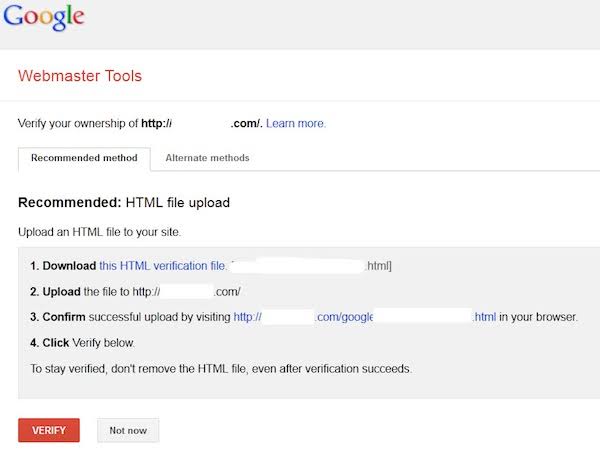
Step 7: Google Analytics and Webmaster Tools Updates
Once you’ve switched over to HTTPS, make sure to update your property settings in Google Analytics as well as any other webmaster tools used so they reflect the new URL.
Step 8: Test, Everything
After changing to secure Secure Sockets layer certificates, check different browsers and devices with your web page to confirm it is displayed correctly in each view and that all content loads securely through https.
Additional Tips:
- Automatic Renewal: Let’s Encrypt certificates are valid for 90 days, so it’s important to set up automatic renewal. Many hosting providers offer this feature.
- Mixed Content Issues: After installing SSL, ensure that all resources (images, scripts, etc.) are loaded over HTTPS to avoid mixed content warnings.
- SSL Plugins: If your hosting doesn’t provide an easy integration, consider using a WordPress plugin like ‘WP Encryption – One Click Free SSL Certificate & SSL / HTTPS Redirect to Force HTTPS, Security+’, which simplifies the process.
Certainly! Troubleshooting SSL issues in WordPress can be essential to ensure your site is secure. Here are some steps to address common SSL-related problems:
How Can I Troubleshoot SSL Issues on My Site?
- Double-Check SSL Setup:
Verify that your SSL certificate is correctly installed and configured.
Ensure that all necessary changes are made to your WordPress settings to enforce an SSL site-wide.
- Identify Conflicting Plugins or Themes:
Deactivate all plugins and switch to a default WordPress Themes to identify if any of them are causing SSL issues.
FAQS
Q1. Do I have to be a technician to use Let’s Encrypt?
While having some technical know-how can be beneficial, Let’s Encrypt has made it user-friendly for individuals with a background to acquire and set up SSL/TLS certificates. Many popular web hosting services integrate with Let’s Encrypt, allowing users to generate and configure certificates within their control panels. Additionally, there are tutorials and guides available to walk users through the process step by step.
Q2. Is it possible to obtain a certificate from Let’s Encrypt?
Let’s Encrypt began offering certificates in 2018. A wildcard certificate enables website owners to secure subdomains under one domain using an SSL/TLS certificate. However, please keep in mind that acquiring a certificate entails verification of ownership through DNS challenges.
Q3. Do web browsers trust Let’s Encrypt certificates?
Absolutely! Major web browsers such as Google Chrome, Mozilla Firefox, Microsoft Edge, Apple Safari, and Opera trust Let’s Encrypt certificates. These certificates are included in the root store of these browsers, ensuring that any website with a Let’s Encrypt certificate will showcase the green lock icon and HTTPS prefix in the address bar.
Q4. Does Let’s Encrypt share my data with parties?
Let me clarify, Let’s Encrypt doesn’t gather data when issuing certificates and doesn’t disclose any gathered information to parties. They follow privacy rules and transparency guidelines to safeguard user data privacy and security.
Try Let’s Encrypt Today!
Remember, while Let’s Encrypt is free and open, it’s crucial to maintain the certificate and keep your site secure. Regularly check your SSL status and be aware of the renewal dates to avoid any lapses in certification.